
Changelog
Overview
BOS Enterprise has two tracking features installed: Changelogs and Audits.
Changelogs record Create-Read-Update-Delete (CRUD) changes made to selected tables and fields in the database.
The changelog is updated every minute on a fixed schedule. Changes are merged if they happen within 60–120 seconds of the previous record being changed.
- If a user makes multiple changes within that period, only the final change is recorded.
- If a user changes a record and then changes it back within that period, the change is not recorded.
- However, changes are recorded if they overlap the changelog's minute (e.g. a record is changed 10 seconds before the changelog period ends and then changed back 10 seconds after the period has started).
Changelogs are recorded for:
- Customers
- Items
- Price Lists
- Production Planning – Tasks
- Service Manager
- Settings
- Suppliers
- Transaction Types
- Transactions
- Weighbridge
You can view the entire change log from Main Menu > Help > View Changelog. In modules, you can view Changelogs from the List View (All changes to the module) or from the Edit View (All changes to selected record). When change logs are accessed from the Main Menu or List View of a module, the default filter is Today.
Settings
The defaults are the values for new databases, new users and new Transaction Types. Your database may have different values.
| Setting | Description | Default |
|---|---|---|
| System > Remove Audits/Changelog older than X months (0 = retain all logs) | Specifies how long to keep changelogs. Shorter periods are preferable because changelogs can increase the size of the database. | 12 |
Changelog
Where available, changelogs can be viewed from Menu (button) > View Changelog.
All the changelogs can be viewed from Main Menu > Help > View Changelog.
Where changelogs were recently (September 2025) introduced into new modules, only changes to records created after the introduction appear.
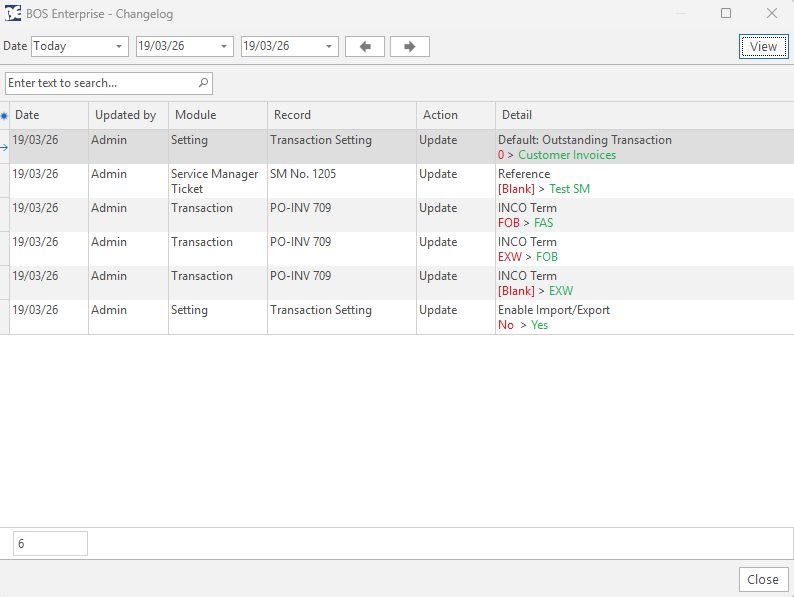
Fields Explained
| Field | Description |
|---|---|
| Field Chooser (*) | Allows fields to be added or removed. |
| ID | The system-generated number for the entry. |
| Date | The date of the change. |
| @ | The time of the change. |
| Updated by | The user who updated the entry. |
| Module | The module that the entry is in. |
| Record | The number of the entry in its module (e.g. the transaction or ticket number). |
| Action | The action that was taken (e.g. Update, Delete). |
| Detail | Details of the change: the field changed and its value before and after the change. The section is colour-coded. |
Audit Fields Explained
Where available, audits can be viewed from Menu (button) > View Audits or from the right-click context menu under summaries (Summaries > Audits). Audits are opened on the right-hand side.
Buttons Explained
| Button | Description |
|---|---|
| View | Generates an audit report. |
| Menu |
|
Filters Explained
| Filter | Description |
|---|---|
| Set | Predefined date options including No Date to display all the changes. |
| Arrows | Adjusts the dates. |
| Date... to | Fields to enter specific dates. |
| Module | A dropdown list of all the modules that have audit trails. |
| Module options | A dropdown list of fields in the module to filter the entries (e.g. Status, Updates, Deletes, Imports). Unavailable in some modules. |
| No. | Enter a specific entry or transaction number. |
| User | A dropdown list of all the users to select all or a specific user. |
Fields Explained
| Field | Description |
|---|---|
| Field Chooser (*) | Allows fields to be added or removed. |
| ID | The system-generated number for the entry. |
| Trans No. | A code indicating the module, and the number of the entry in its module. |
| Description | A list of the changes made (e.g. Update – Qty: 1, Delete – Item: Red Chair). |
| Updated | The user, date and time of the update. |
Technical Information
- Every table has a USERUPDATED field which is populated from the front end on every Insert, Update or Delete.
- The changes are recorded in the table CHANGELOG, which includes the following fields:
- CHANGELOGID,
- PKID – Primary key
- FKID – Foreign key of the Parent table
- CRUDID
- USERNAME
- TABLENAME
- FIELDNAME
- NEWVALUE (truncated to 100 chars)
- A Trigger is created for every table that is monitored and is named: TR_TABLENAME_CHANGELOG.
- The trigger updates the CHANGELOG table using the stored procedure TR_TABLENAME_CHANGELOG.
- The procedure CHANGELOG_SELECT provides a user-friendly log of changes.
- A table STATUSCHANGE records status changes. This table helps merge the changelog and audit trail functionality.
Keys
CRUDID
| Field | Description |
|---|---|
| 1 – Insert | One record for every field that has value. |
| 2 – Update | One record for every field that has a new value. |
| 3 – Delete | One record linked to the table only. |
Steps to implement
- Document the fields that are checked in the module documentation under a heading called Changelog.
- Create a trigger that updates Changelog after insert, update and delete, named TR_TABLENAME_CHANGELOG.
- Update procedure CHANGELOG_SELECT_CAPTION, which converts NAMES to CAPTIONS.
- Create a procedure to select the Changelog, named TABLENAME_CHANGELOG.
- Add a menu item to View Changelog.