
Take Control of your Inventory with BOS Enterprise
💡Accurate stock records help you reduce waste, improve cash flow, fulfil customer orders with confidence and make better buying and production decisions.
Why inventory management matters
Inventory is one of the biggest working-capital investments in many businesses. When it is managed well, you know what you have, where it is, what is on order, what is reserved and when to replenish. That visibility helps prevent costly stockouts, avoids overbuying, reduces storage waste and gives your team reliable information for purchasing, production, sales and finance.
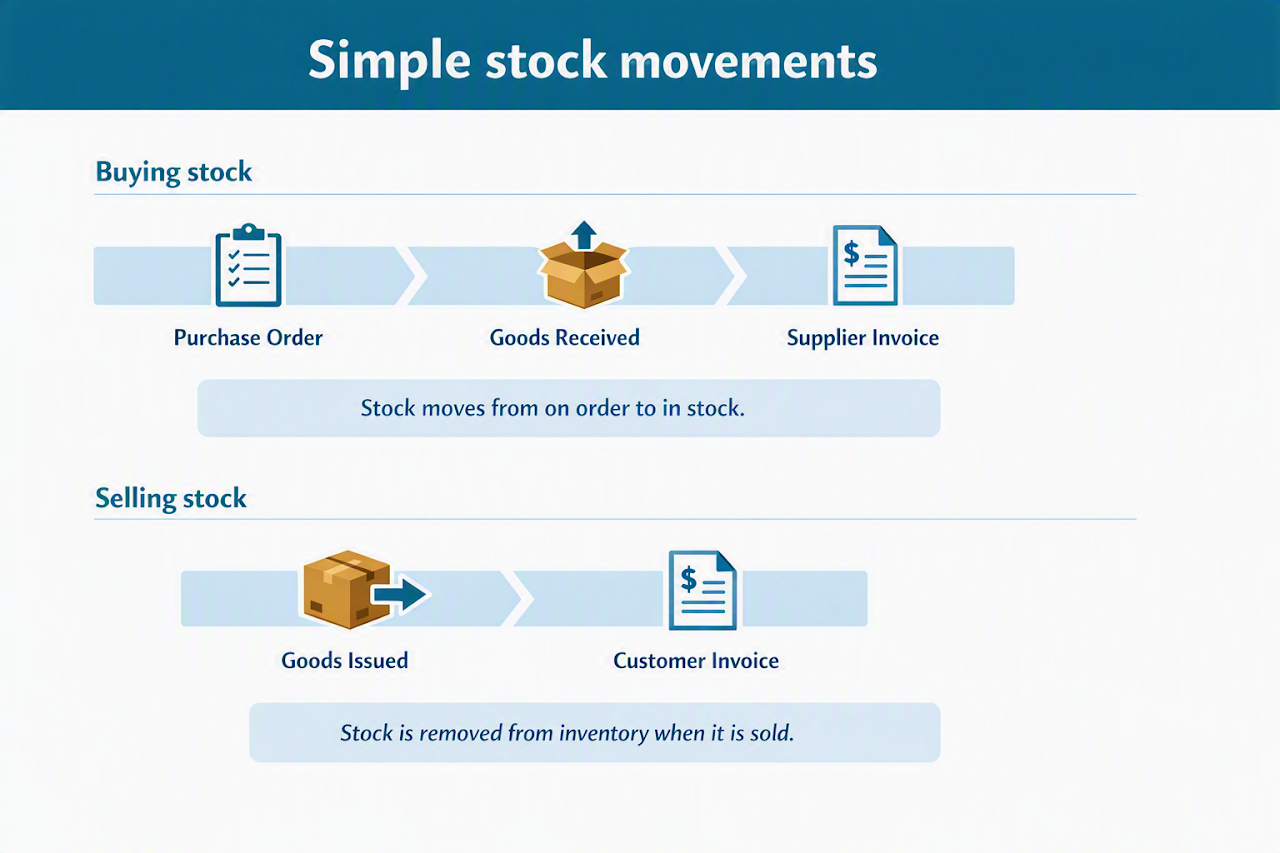
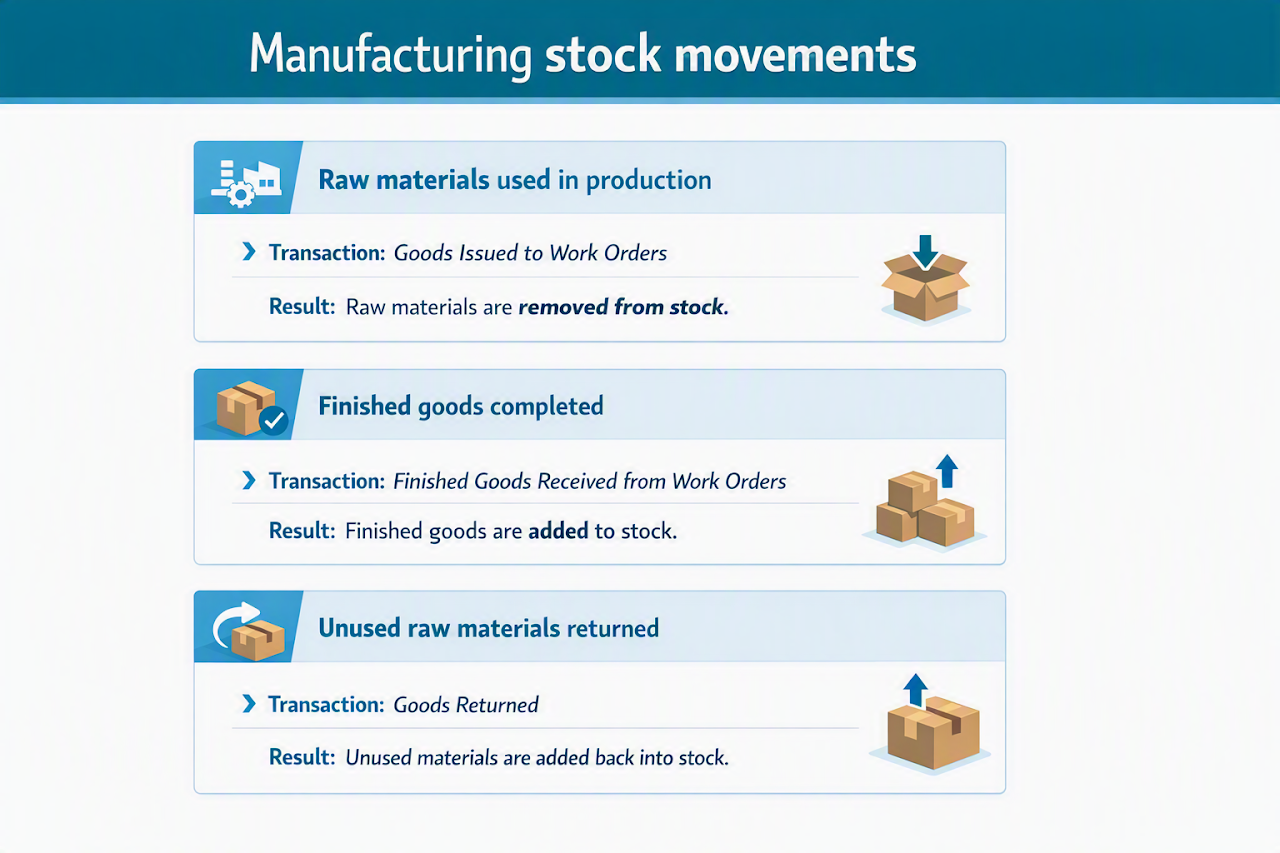
For printing and manufacturing businesses, accurate inventory is especially important because stock moves through several stages: raw materials are bought, issued to work orders, converted into finished goods, returned if unused, sold and invoiced. BOS Enterprise is designed to support these steps so that the figures in your reports match what you can physically count in your warehouse.
How BOS Enterprise keeps inventory moving correctly
BOS Enterprise was built for the printing and manufacturing industries. Therefore, it includes features that simplify and automate inventory-related processes. When the correct transaction sequence is followed, your inventory reports should reflect reality. For example, if BOS Enterprise shows 10 lengths of 12 mm Supa wood at 2 750 x 1 840 mm in stock, you should be able to walk into the warehouse and count those items. Investigate and correct any difference between the system and the warehouse count.
In addition to the illustrations above, you can use sales orders to reserve the stock. You can reserve stock for customers, or reserve raw materials for work orders. Reserving stock is the step before issuing it.
When these transactions are used consistently, BOS Enterprise can show what you bought, what you paid for it, what was used in production, what was returned and what was sold. This consistent use creates a clear inventory trail from purchasing through production and sales.
Use BOS Enterprise reports to make better stock decisions
Replenishment: buy at the right time
The replenishment tools in BOS Enterprise help you see what is available, what is already on order and what is reserved for sales orders. The system can use historic data to adjust minimum stock quantities and help you create purchase orders directly from the module. When the process is followed correctly, your business can move closer to receiving stock just in time instead of overbuying or running short.
Over / Under report: identify excess and shortages
The over / under report helps you identify where stock levels are not aligned with demand. It can highlight items where you are holding too much stock, such as stock bought during a supplier promotion, and finished goods that are not selling, which gives you the information you need to discount slow-moving stock, adjust purchasing or slow down production where needed.
Start with accurate stock on hand
All inventory features depend on accurate stock on hand. To check your current position, go to Inventory Reports > Default. You can select today’s date or leave the date at its default No Date. The report shows:
| Field | Description |
|---|---|
| In stock | the quantity that should be physically on your premises. |
| On order | quantities on active purchase orders. |
| Reserved | quantities allocated to active sales orders. |
| Available | the in-stock quantity less the reserved quantity. |
If the report looks mostly accurate, you are ready to use the inventory features with confidence. If there are only a few red numbers, which indicate that stock was sold when the system did not show it as available, you can adjust those items quickly in the mobile app.
Quick corrections in the mobile app
- Sign in to the BOS Enterprise mobile app at https://bosent2601.quickeasysoftware.com/.
- Tap the Inventory tile on the menu.
- Enter part of the item name in the search block and click Search (button).
- Tap the correct item on the list.
- The stock details appear.
- Tap the location and tap Update Stock on the context menu to enter the actual quantity in stock.
In the background, BOS Enterprise creates a stock check transaction to adjust the item to the quantity you entered. (A stock check is the Transaction Type used to adjust stock on hand.)
When the stock position needs a reset
If the report shows a sea of red numbers or a stock value that is unrealistic for your business, it may be better to reset your stock to zero and then capture a fresh stock take.
- Navigate to the Stock Check Transaction Type, for example, Main Menu > Items > Stock Check, and click New (button).
- Set the filters you need. For smaller inventories, you can set category and location to all and select active items. For larger inventories, complete this exercise per category or per location.
- Click View (button) to display the items.
- Select the items you want to update (use Ctrl + A to select all the items).
- Click Create (button).
- Filter to pending transactions and click Actions (button) > Zero the Count Quantity to reset the stock to zero.
- Print stock count sheets from Output (button) > Print, count the stock physically and capture the actual quantities in BOS Enterprise.
- Once the quantities are captured, change the statuses to complete (Actions (button) > Set Status to Complete).
Run a full stock check before normal daily transactions begin, especially if you are resetting stock to zero. The stock check is done at yesterday’s date, so today’s transactions do not interfere with the count. For example, if you receive 100 widgets today and then count those same 100 widgets as stock on hand, you could accidentally double the quantity in the system.
Ready to get more value from BOS Enterprise?
Start by checking your Inventory Reports > Default report today. If your figures are accurate, begin using the replenishment and over / under features to make better purchasing and production decisions. If your figures need attention, correct small differences in the mobile app or run a stock check to reset and rebuild your inventory records. The more accurate your stock data is, the more value BOS Enterprise can deliver to your business.
❓Need help? Our support team can help you configure BOS Enterprise to match the way your business works.