
Mobile App: Login and Passwords
Overview
The Mobile App lets you work with BOS Enterprise from your phone, tablet or computer. It runs in any browser, and you can install it from the browser to use it like any other app. For what each module does and the settings it needs, see Settings, Login & Troubleshooting.
💡These tutorials explain how to sign in to the mobile app, reset your password and share a device.
Tap means tap the screen, or left-click with your mouse if you use a computer.
How to Sign In to the Mobile App
The first time you sign in, you are asked to change your password and to retype it to verify it. The password must contain at least one uppercase letter, one lowercase letter, one number and one special character.
If you create a password on your computer, check that you can easily type its special characters on your phone.
- Open your browser.
- Go to https://bosent.quickeasysoftware.com/.
- Enter your Email and Password.
- Tap Sign In (button), or press Enter.
- If you are linked to more than one database, select the database from the dropdown list and tap Continue (button).
- The Tile Menu appears.
How to Reset Your Password
- Go to https://bosent.quickeasysoftware.com/.
- Tap Forgot Password.
- Enter your email address.
- Tap Send Reset Link (button).
- You receive an email with a new password.
- Sign in with the new password.
- On the Change Password screen, enter a password of your own in New password and Verify Password.
- Tap Save Password (button).
How to Share a Device
On a shared device, several people use the same phone or tablet and each records their own timekeeping by signing in with their PIN. Sharing a device is only available for Production timekeeping.
- Sign in to the Mobile App. Only the first person who uses the device signs in.
- Tap Timekeeping on the Tile Menu.
- Note: Production must be selected as your Timekeeping Mode.
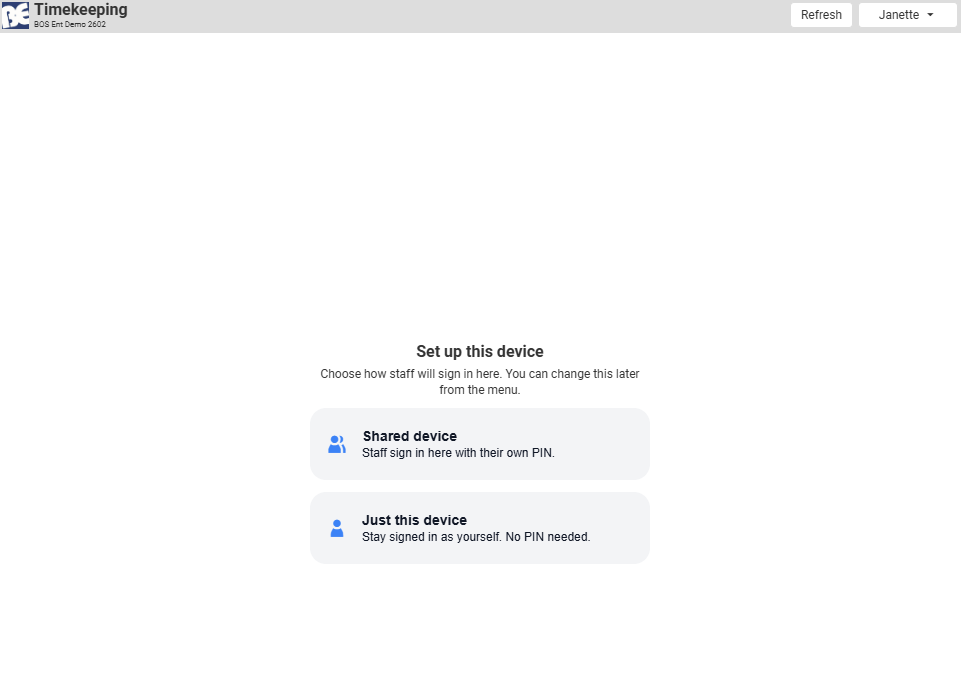
- The first time, the Set up this device screen appears (see the first screenshot below). Tap Shared device.
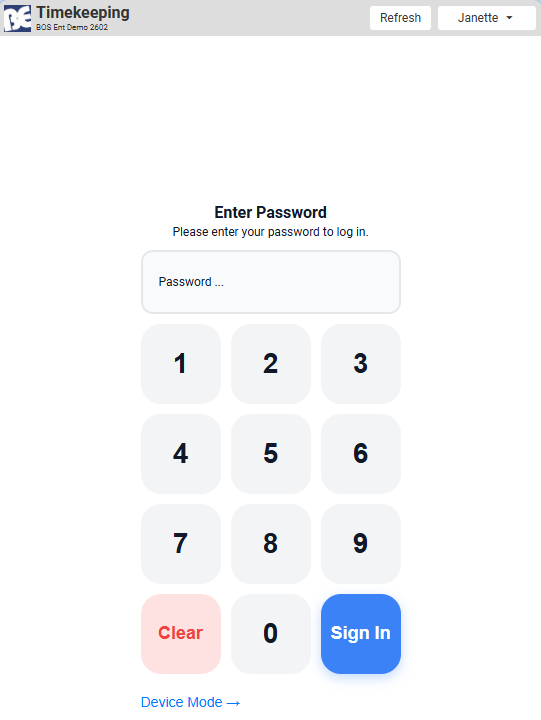
- On the Enter Password screen, enter the PIN that was assigned to you (see the second screenshot below).
- Tap Login (button).
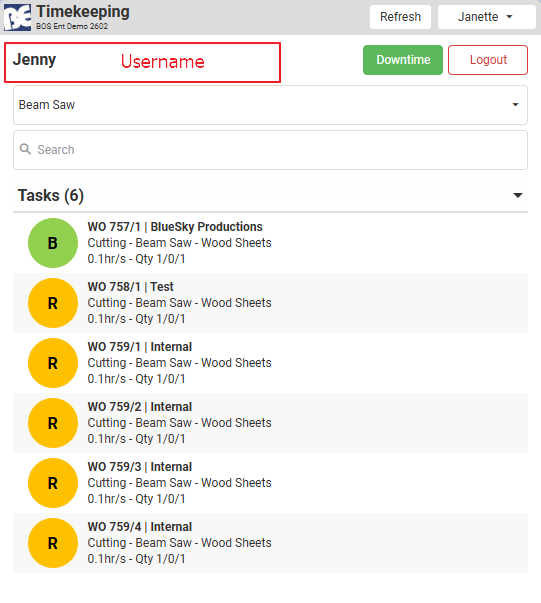
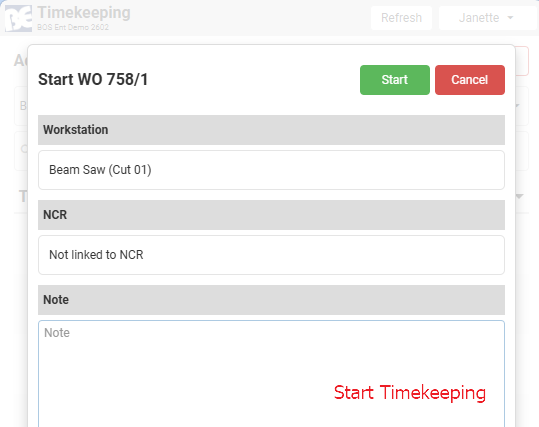
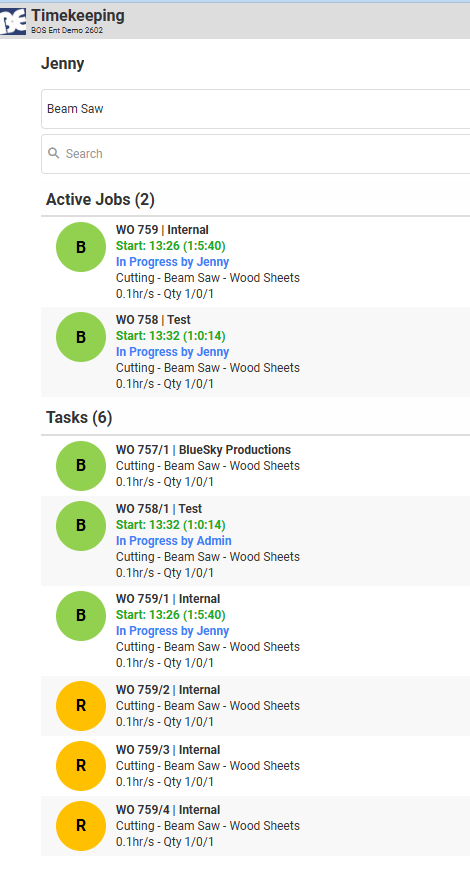
- Your name appears with a list of tasks. Tap a task and record your timekeeping as usual.
- When you have started your timekeeping, tap the red Logout (button) next to Downtime to return to the Enter Password screen.
- The next person starts from step 4.
- The signed-in person's active jobs appear under Active Jobs.
- Other active jobs appear in the Tasks list.
How to Stop Sharing a Device
When you stop sharing a device, it stays signed in as one person, with no PIN needed. That person's name appears in the top-right corner.
- On the Timekeeping screen, tap Logout (button) to return to the Enter Password screen.
- Tap Device Mode below the keypad.
- On the Set up this device screen, tap Just this device.
To share the device again, tap Logout (button) on the Timekeeping screen. The Set up this device screen appears; tap Shared device.