
Service Manager - Reports
Overview
Several management reports are included with the Service Manager. These reports provide valuable insights into an organisation's operations.
General Settings
These settings are needed for the Customer Heat Map Report:
Navigate to Main Menu > Setup > Transactions. Write down the ID numbers for the following Transaction Types:
- Customer Invoices
- Customer Credit Notes
- Customer Orders (e.g. Sales Orders)
- Quotations
If multiple Transaction Types are used for any of these transactions, record all the numbers.
The defaults are the values for new databases, new users and new Transaction Types. Your database may have different values.
| Setting | Description | Default |
|---|---|---|
| CRM > Transaction Type ID's for Customer Credit Notes (e.g. = 2, in (1,2,3)) | Enter the ID for Credit Notes in the Value column. (e.g. if the ID is 9: The entry is: = 9). | Blank |
| CRM > Transaction Type ID's for Customer Invoices (e.g. = 2, in (1,2,3)) | Enter the ID for Customer Invoices in the Value column. (e.g. if the IDs are 8 and 12: The entry is: = 8,12). | Blank |
| CRM > Transaction Type ID's for Customer Orders (e.g. = 2, in (1,2,3)) | Enter the ID for Sales Orders in the Value column. (e.g. if the ID is 6: The entry is: = 6). | Blank |
| CRM > Transaction Type ID's for Quotations (e.g. = 2, in (1,2,3)) | Enter the ID for Quotations in the Value column. (e.g. if the ID is 2: The entry is: = 2). | Blank |
Buttons Explained
| Button | Description |
|---|---|
| View | Generates the report based on the selected filters. |
| Edit | Allows the fields to be edited. Only appears for the Project Summary. |
| Menu |
|
Component Summary
The Component Summary displays project components with their billable information and levels of completion.

Filters Explained
| Filter | Description |
|---|---|
| Set | A dropdown list of date options including No Date to see all the records. |
| Arrows | Adjusts the date forwards or backwards. |
| Date | An option to select custom dates. |
| Radio Buttons | These buttons determine how the date is filtered.
|
| Status Checkboxes | Includes all the status that are checked. If no statuses are checked, all the statuses are included. |
| Filter |
|
Fields Explained
| Field | Description |
|---|---|
| SM No. | The service manager ticket number. |
| Status (SM) | The Status of the Service Manager entry. |
| Company | The name of the Customer or Supplier. |
| Project | The name of the project. |
| ID | The system-generated number for the entry. |
| Order ID | The system-generated number for the order of the entry on the project. |
| Group | The name of the group. |
| Phase | The name of the phase. |
| Component | The name of the component. |
| Status (Task) | The Status of the Task. |
| Next Status | The next Task Status. |
| Due Date | The date on which the task is due. |
| Total | The total billable amount for the project. |
| Comp % | The percentage that the task is complete. |
| Invoiced | The percentage of the billable amount invoiced. |
| Outstanding | The amount that must still be invoiced. |
| Last Inv | The last invoice number. |
| Last Inv Date | The date of the last invoice. |
| Last Inv Amount | The amount of the last invoice. |
| Filters | The allocated filters (Tag Codes). |
| Start | The start date of the task. |
| Menu (...) | A submenu with the following options:
|
Project Summary
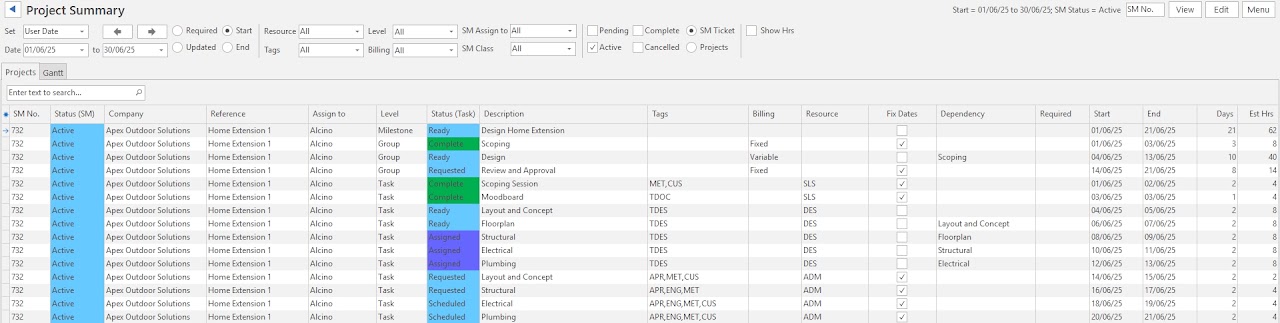
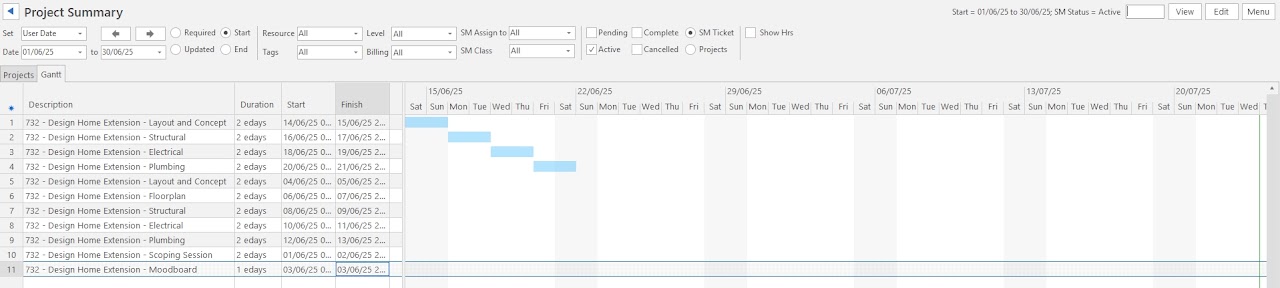
The Project Summary provides a summary of the tasks that must be completed in two formats: A grid-based summary and a Gantt chart.
Filters Explained
| Filter | Description |
|---|---|
| Set | A dropdown list of date options including No Date to see all the records. |
| Arrows | Adjusts the date forwards or backwards. |
| Date | An option to select custom dates. |
| Radio Buttons | These buttons determine how the date is filtered.
|
| Resource | A dropdown list of resources to select all or a specific resource. |
| Tag | A dropdown list of tags to select all or a specific tag. |
| Level | A dropdown list of levels to select all or a specific level. |
| Billing | A dropdown list of billing criteria to select all or a specific criterion. |
| SM Assign to | A dropdown list of users to select all or a specific user. |
| SM Class | A dropdown list of classes to select all or a specific class. |
| Status Checkboxes | Includes all the status that are checked. If no statuses are checked, all the statuses are included. |
| SM Ticket / Projects radio buttons | Switches the display to show either SM Tickets or Projects. |
| Show Hrs | Checkbox. If checked, displays the actual hours and variances. |
Projects Tab Fields Explained
Fields marked in blue (✎) can be edited.
| Field | Description |
|---|---|
| Field Chooser (*) | Add or remove columns. |
| SM No. | The service manager ticket number. |
| Status (SM) | The status of the service manager ticket. |
| Class | The class assigned to the project. |
| Company | The customer or supplier name. |
| Reference | The project's reference. |
| ID | The system-generated number allocated to the task. |
| Tracker ID | The system-generated number allocated to the tracker entry. |
| Parent ID | The system-generated number allocated to the parent entry. |
| From | The Code and Number of the source transaction. |
| Order ID | The sequential number allocated to the task's order. |
| Assign to | The staff member that the task is assigned to. |
| Level | The applicable project level. |
| Description (Extended) | The description of the task. |
| Status (Task) | The status of the task. This field is editable if Edit (button) is clicked. |
| Description | The brief description of the task. |
| Tags | The tags allocated to the task. |
| Billing | The billing type allocated to the task. |
| Resource | The code for the project resource allocated to the task (user, Cost Centre or department codes). |
| Fix Dates | A checkbox. If checked, the dates are fixed and are not changed by automated date-setting procedures. This field is editable if Edit (button) is clicked. |
| Dependency | The name of the task that must be completed before this task can be started. |
| Required | The date on which the task is required. |
| Start | The task's scheduled start date. This field is editable if Edit (button) is clicked. |
| End | The task's scheduled end date. This field is editable if Edit (button) is clicked. |
| Days | The number of days the task is expected to take. This field is editable if Edit (button) is clicked. |
| Est Hrs | The estimated number of hours the task is expected to take. |
| Act Hrs | The actual hours to date that the task has taken. |
| Var Hrs | The variance: difference between the estimated and actual hours. |
| Moved (d) | The number of times the schedule has been moved. |
| Week | The week number of the start date. |
| Month | The month number of the start date. |
| Created | The date on which the task was created. |
| Updated | The date on which the task was updated. |
| Created by | The user who created the task. |
| Updated by | The user who last updated the task. |
Gantt Tab Fields Explained
| Field | Description |
|---|---|
| Field Chooser (*) | Add or remove columns. |
| Description | The task's number and description. |
| Duration | The expected duration. |
| Start | The start date and time for the task. |
| Finish | The end date and time for the task. |
| Menu (...) | A right-click submenu with these options:
|
| Calendar | A visual representation of the tasks. |
Activity
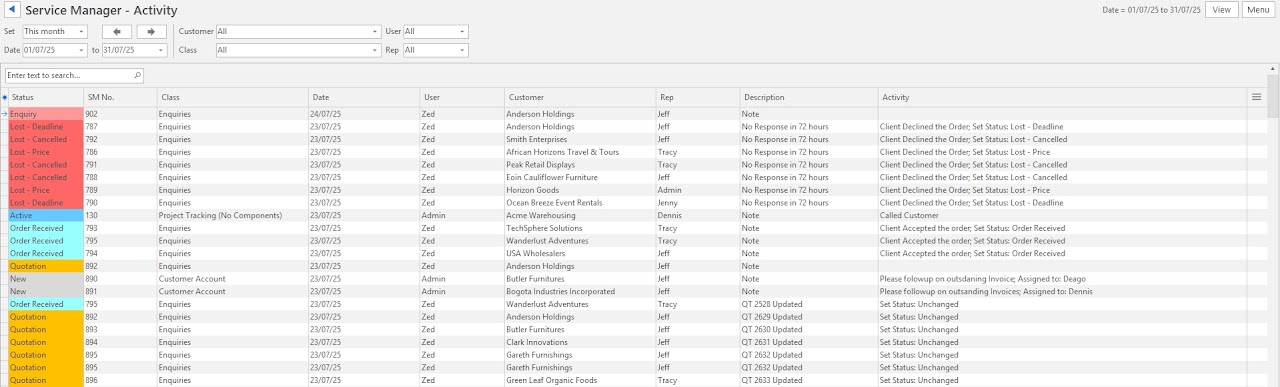
The Activity report displays the activity from the service manager and transactions. This report helps to track customers' engagements with the organisation in terms of queries, requests, orders and quotations.
Filters Explained
| Filter | Description |
|---|---|
| Set | A dropdown list of date options including No Date to see all the records. |
| Arrows | Adjusts the date forwards or backwards. |
| Date | An option to select custom dates. |
| Customer | A dropdown list of customers to select all or a specific customer. |
| Class | A dropdown list of classes to select all or a specific class. |
| User | A dropdown list of users to select all or a specific user. |
| Rep | A dropdown list of reps to select all or a specific rep. |
Fields Explained
| Field | Description |
|---|---|
| Field Chooser (*) | Add or remove columns. |
| ID | The system-generated number allocated to the activity. |
| Status | The status of the activity. |
| SM No. | The service manager ticket number. |
| Class | The class allocated to the activity. |
| Date | The date that the activity was created. |
| User | The user who created the activity. |
| Customer | The name of the customer. |
| Category (Cus) | The customer's category. |
| Region | The customer's region. |
| Rep | The rep allocated to the customer. |
| Description | The description of the activity. |
| Activity | A description of the activity. |
| Menu (...) | A submenu with the following option: Open SM Ticket. |
Sales Comparison
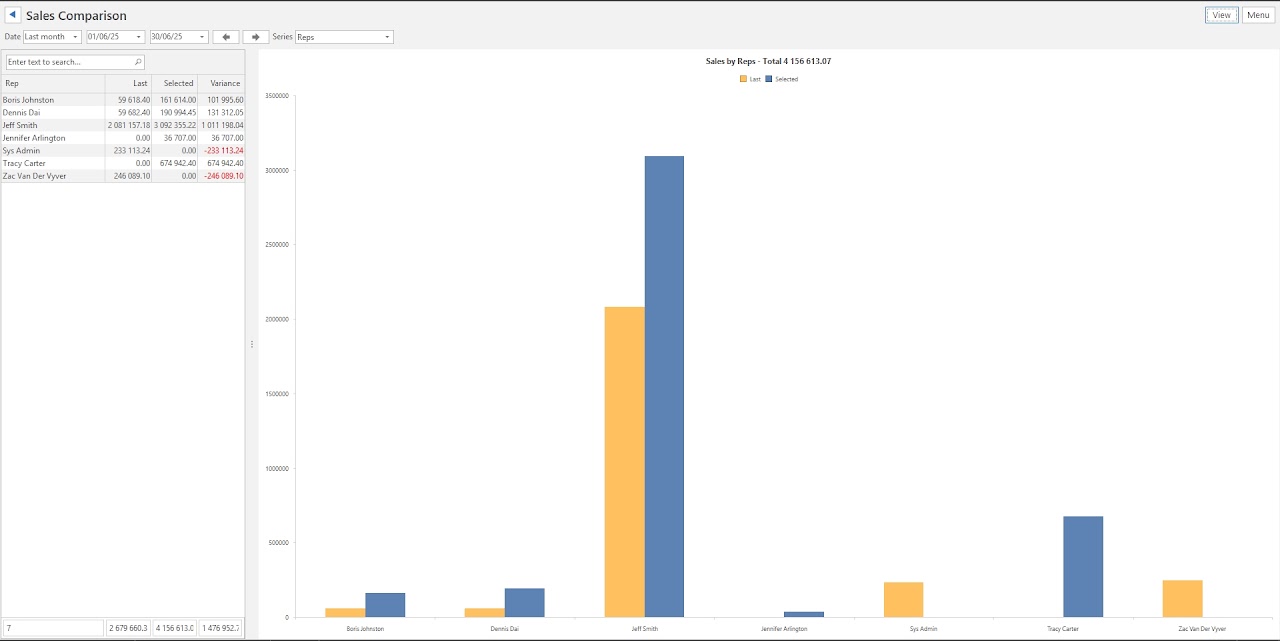
The Sales Comparison report summarises the sales for a selected period and for a selected filter (e.g. rep or customer). It provides the actual amounts on the left and a chart on the right. The values are determined by the Accounting > Sales Account selection in the General Settings (Main Menu > Setup > Settings > General (tab)).
Filters Explained
| Filter | Description |
|---|---|
| Date | A dropdown list of date options including No Date to see all the records. |
| Arrows | Adjusts the date forwards or backwards. |
| Date fields | An option to select custom dates. |
| Series | Select one of these options:
|
Fields Explained
The fields can be clicked to sort them from highest to lowest, or vice versa.
| Field | Description |
|---|---|
| Selected Filter | The name of the option selected from the Series filter dropdown list (e.g. Rep, Customer). |
| Last | The values for the previous year. |
| Selected | The values for the selected period in the current year. |
| Variance | The difference between the Last and Selected columns. Values appear in red if they decreased from the past period compared to the current period (selected period). |
Customer Heat Map
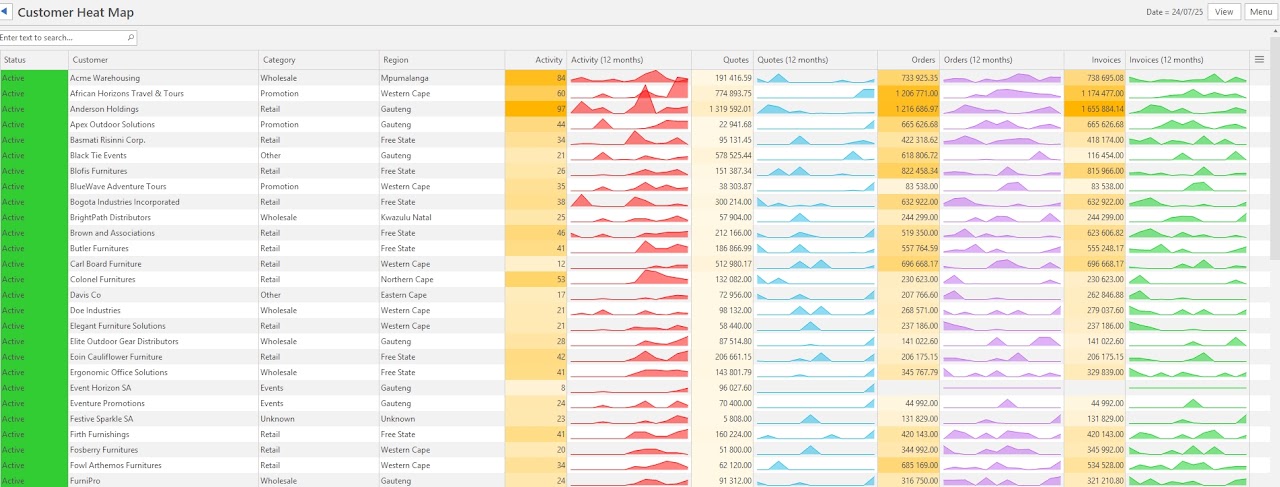
This report highlights the top clients, and those who have quietly disappeared or might be in danger of disappearing as can be seen by their decreased activity and sales.
Fields Explained
| Field | Description |
|---|---|
| Field Chooser (*) | Add or remove columns. |
| Status | The status of the Customer. |
| Customer | The name of the customer. |
| Rep | The name of the rep. |
| Category | The customer's category. |
| ID | The system-generated number allocated to the activity. |
| Region | The customer's region. |
| Date | The date on which the record was created. |
| Activity |
|
| Activity (12 months) | A visual representation of the monthly activity: A Sparkline Chart runs from oldest (left) to latest (right). |
| Quotes | This column reflects the total value of the customer's quotations over the past year. |
| Quotes (12 months) | A visual representation of the monthly quotations. |
| Orders | This column reflects the total value of the customer's sales orders over the past year. |
| Orders (12 months) | A visual representation of the monthly orders. |
| Invoices | This column reflects the total value of the customer's invoices over the past year. |
| Invoices (12 months) | A visual representation of the monthly invoices. |
| Activity per month | The number of interactions for a specific month. Months are available for the past year. |
| Menu (...) > View Customer Summary | Opens a panel with a summary of the customer's information and transactions. |