
Timekeeping (Tracker App)
Overview
The tracker app can be used to track the time taken to complete certain tasks using a barcode scanner or touchscreen device.
It can also be used to track time and attendance in which case you only need to log in and log out from the main screen. However, as no other data is captured, this is not a secure system.
Using Jobs / Tasks
If a scanner is used, the information must be printed on the Work Ticket. The bcCode39 barcode type is recommended because it is easy to use and a check digit is not required. Up to 43 alphanumeric characters can be added to this barcode type. For tracking purposes, only numeric characters are added to the barcode.
The Jobs appear in the following format:
- Linked to Transactions: Code – Trans No – Start – Hours – Qty Complete/Spoiled.
- Downtime: Downtime – Cost Centre – Code – Start – Hours.
Buttons Explained
| Button | Description |
|---|---|
| Logout | Logs the user out and returns to the login page. |
| Start | Starts the timekeeping record for the selected job. |
| Start Downtime | Starts downtime for the selected job. |
| Refresh | Connects to the server and refreshes the data. |
| Back | Returns to the Tile Menu. |
| Stage Name | Shows the name of the active stage.
|
Process
This is a brief explanation of the process and other buttons. See Tutorials: Tracker App Timekeeping for detailed instructions.
- Select a Task.
- Click Start (button).
- Select a Workstation.
- Click Next (button).
- Click Not linked to NCR (button) or NCR pending (button).
- Click Start (button).
- Adjust the team size if necessary:
- Teams (Green +): Adds a team member to the task. Time is recorded for every team member. If the Team size is changed within 30 seconds of starting, the existing record is updated, else a new Timekeeping record is started.
- Teams (Red -): Removes a team member from the task. f the Team size is changed within 30 seconds of starting, the existing record is updated, else a new Timekeeping record is started.
- Click the Blue Note Icon (button) to add a note.
- Click the Red Square (button) to stop timekeeping for the job.
- Confirm that the job must be stopped.
- Enter the Completed and Spoiled quantities using the onscreen keypad.
- Note: These captions can be changed by a setting.
- Click Next (button).
- Select a Status: Complete (button) or Part-Complete (button).
- Click Stop (button) to end the timekeeping or click Cancel (button) to continue the timekeeping.
Tracker Timekeeping Example
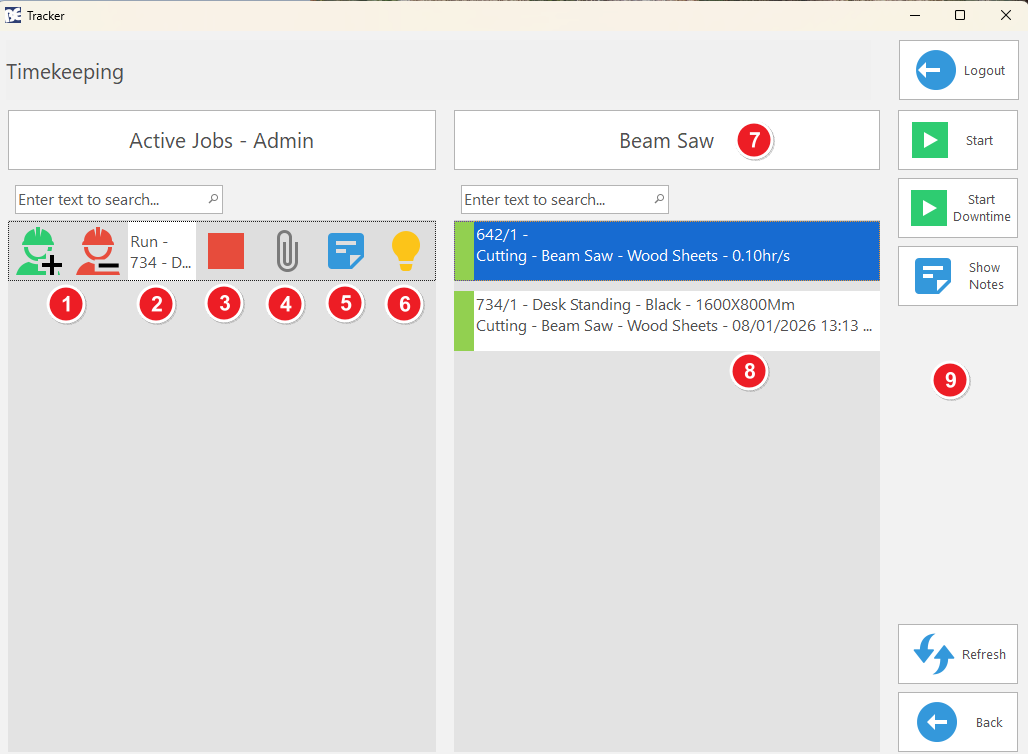
Numbers on Screenshot
- Add or remove team members.
- The current active task.
- Stops the current run. The button is green if a task should be started.
- Allows a file or image to be attached.
- Allows notes to be recorded.
- Allows a suggestion to be made (see Production Suggestions).
- The current stage. The field is clickable and displays the other stages for selection when clicked.
- Tasks waiting to be executed for the current stage.
- Buttons (see Buttons Explained above).