
Copying Transactions
Overview
- Transactions can be copied to duplicate them, or to create additional transactions.
- The conditions under which transactions can be copied are set up under Copy Rules.
- User access is required to copy certain transactions.
- The new transaction keeps the original's delivery address, Incoterm details, Port of Loading and Port of Discharge.
- The screenshot below displays a Sales Order that is being copied to a Customer Invoice.
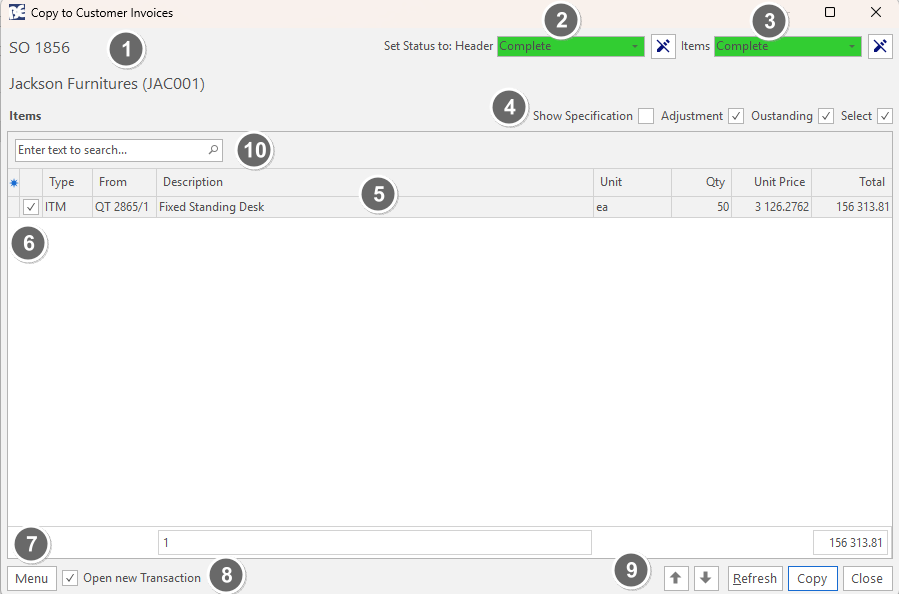
- The name of the transaction that is being copied.
- The header status that the copied transaction changes to. A line through the pencil indicates the status does not change.
- The status that the items change to. A line through the pencil indicates the statuses do not change.
- Filters to select items when there are many items to copy.
Field Description Show Specification If checked, the specification appears. Show Adjustment If checked, the adjustment appears. Outstanding If checked, only shows items not yet copied to the specific transaction. Select Displays a checkbox for items to be selected to copy. - Information about the item. The available fields are:Info
Fields marked in blue (✎) can be edited.
Field Description ID The system-generated number allocated to the entry. Type The type of item. From The original transaction that was copied. Description The item's description. Reference The item's reference. Code The item's brief description. Group The group name if items are allocated group names on the transaction. Subgroup The subgroup name if items are allocated subgroup names on the transaction. Supplier The supplier from which goods are purchased (e.g. outwork). Unit The item's unit. Qty The item's quantity. Unit Price The item's unit price. % The item's adjustment. Total The item's total value on the transaction. - A checkbox. If checked, the item is copied.
- Menu (button): Standard Layout options to save or restore the default grid.
- Open new Transaction: Checkbox. If checked, the new transaction is opened. If unchecked, a confirmation message appears.
- Buttons:
Field Description Arrows Navigates between copy dialogues of the next or previous transaction that is in the correct status to be copied. Refresh Updates the display with any changes made (e.g. if another user edited or copied the transaction). Copy Creates a transaction and copies the selected items to that transaction. Close Closes the popup without executing the copy instructions. - Search bar to find specific items to copy (when there are long lists of items).
Copying a Customer Transaction to a Supplier Transaction
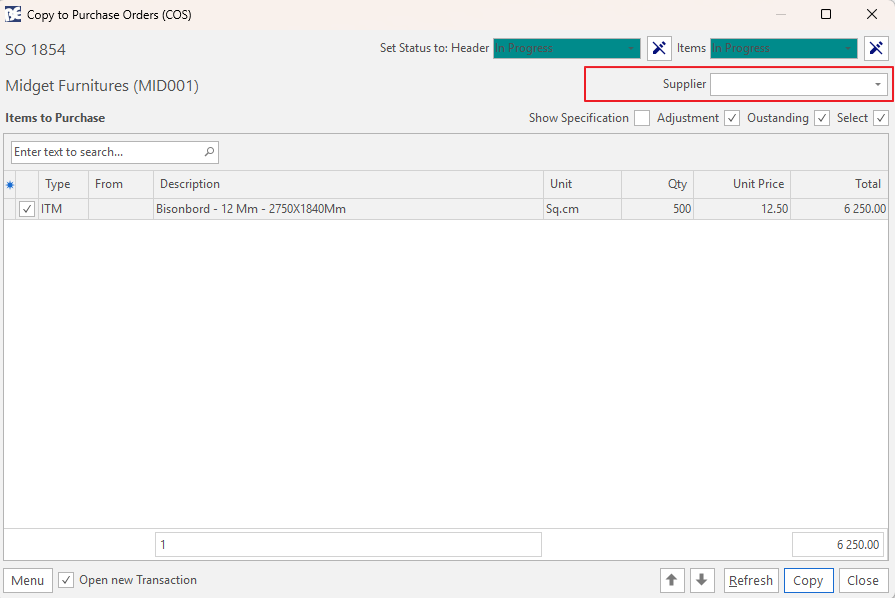
- When a transaction that is linked to a customer (e.g. Sales Order) is copied to a transaction that is linked to a supplier (e.g. Purchase Order), a field to select the supplier is available.
- Selecting a supplier is mandatory. If no supplier is selected, a popup requests a supplier.
- The supplier field determines how VAT is treated on the new transaction.
- The Field Chooser (*) can be used to display the Supplier column in the transaction and also in the copy dialogue.
What a Copy Does
Info
- What is copied, and how, is set in the Copy Rules (see Copy Rules).
- This section explains how BOS Enterprise applies them.
Ways to Copy
- Actions (button) on a transaction, or right-click a transaction in the list: each Copy Rule with Action ticked appears with its Caption.
- With Confirm ticked, the Copy window opens. Without it, the transaction is copied at once with the items the rule selects, and opened if Open Trans is ticked.
- Actions (button) on the list header copies all the selected transactions after you confirm ("<n> Record/s have been selected. Continue?"). Transactions that fail the entity or status check are skipped, and the Copy window is not shown. At the end, "<n> Record/s have been copied." appears.
- Copy to Version (for Transaction Types with versions) copies all the items to a new version with the same number, after you confirm ("Copy to a new Version?"). It needs New access.
Checks Before Copying
| Message | When it appears |
|---|---|
| "Access Denied. The user is not linked to the Transaction's entity." | Entities are used and you are not linked to the transaction's entity. |
| "Access denied. You are not allowed to view <Transaction Type>. See Transactions Setup > View/Edit User Access." | You do not have View access to the Transaction Type you are copying to (see User Access Window). The same message with "edit" appears without Edit access. |
| "Copy to <Transaction Type> not allowed from '<status>' transactions." | The transaction's status is not in the Copy Rule's Allow Status. |
| "Copy not allowed. <Company> is not an Active <Customer>." | The Transaction Type you copy to only allows active customers (or suppliers), and this one is not active. Without a customer or supplier, the message asks you to select one. |
| "Please select a Supplier." | You copy a customer transaction to a supplier transaction in the Copy window without selecting a supplier. |
The New Transaction
- It gets the next number of its Transaction Type (or the same number and the next version for Copy to Version).
- Its status is the Transaction Type's New Transaction status.
- It is linked to the source transaction (the From transaction) and stays in the same transaction flow, unless its Transaction Type has the setting Start a new Transaction flow.
- The transaction date is today, and the due and required dates are calculated from the Transaction Type's settings, unless the Copy Rule's Copy Dates copies them.
- These details are copied:
- The customer or supplier, contact and rep.
- The reference and description.
- The delivery and customer addresses.
- The Incoterm and port details.
- The deposit and service details.
- The entity is kept if the Transaction Type allows it; otherwise the Transaction Type's first entity is used.
- The category is the Transaction Type's category with the same name (blank if there is none). Text fields are copied only when their captions are the same on both Transaction Types.
- When the contact types differ (for example, customer to supplier), the customer or supplier and contact are cleared, unless an earlier transaction in the flow matches the new Transaction Type.
- Without foreign currency, it is in the home currency. With foreign currency, it takes the customer's or supplier's currency at the current exchange rate.
- User-defined fields with the same name are copied; images are linked to the new transaction, not duplicated; the Payment Schedule is copied when the Transaction Type uses one.
- If the source is linked to a workflow with an action for the new Transaction Type, the new transaction is added to the workflow record (see Workflows Reference).
The Copied Items
- The Copy Rule's Copy Items selects the items (for example, only Receive or Issue items). None (Header only) copies no items.
- The quantity is the full or the outstanding quantity, as the rule's Qty & Amount sets. In the Copy window, you can change it.
- The adjustment % is copied only when Copy Adj. (or Adjustment in the Copy window) is ticked.
- The new items get the Transaction Type's default item status.
- Units are not converted. Serial numbers, batches, groups, dates and accounts are copied; accounts change to the new Transaction Type's (or the item's) accounts when the Transaction Types differ.
- When both Transaction Types use the same price type, the prices are kept (converted when the currency differs).
- When the price types differ, the items are priced again from the item's sell, cost or supplier price for the new Transaction Type. If no price is found, the cost becomes the price.
- The VAT % is the current VAT % of the tax type.
- With the setting Convert Items to Estimates, items with an estimate are copied as estimates.
The Source Transaction
- Its header status changes to the Copy Rule's Change Status (H) (or the status chosen in the Copy window), and the copied items to Change Status (I).
- The change is recorded in its audits, for example "Copied to SI - Status set to Complete".
- When it is set to a Complete status and its Transaction Type uses versions, its other versions get the same status.
- Its checklist is updated.