Estimate Types
Overview
Estimate Types provide a framework for creating estimates. This framework makes creating estimates faster and more accurate.
An unlimited number of Estimate Types can be created. For example:
| Field | Description |
|---|---|
| Custom | Users set a custom set of input values. |
| Flexo Engineering | Fixed Input values for use in the Flexographic Tooling industry. |
| Engineering | Fixed input values for use in metal/steel manufacturing. |
User Settings
The defaults are the values for new databases, new users and new Transaction Types. Your database may have different values.
| Setting | Description | Default |
|---|---|---|
| Setups > Estimate Types - Access Allowed | Checkbox. If checked, access is allowed. | Unchecked |
Estimate Type Screenshot
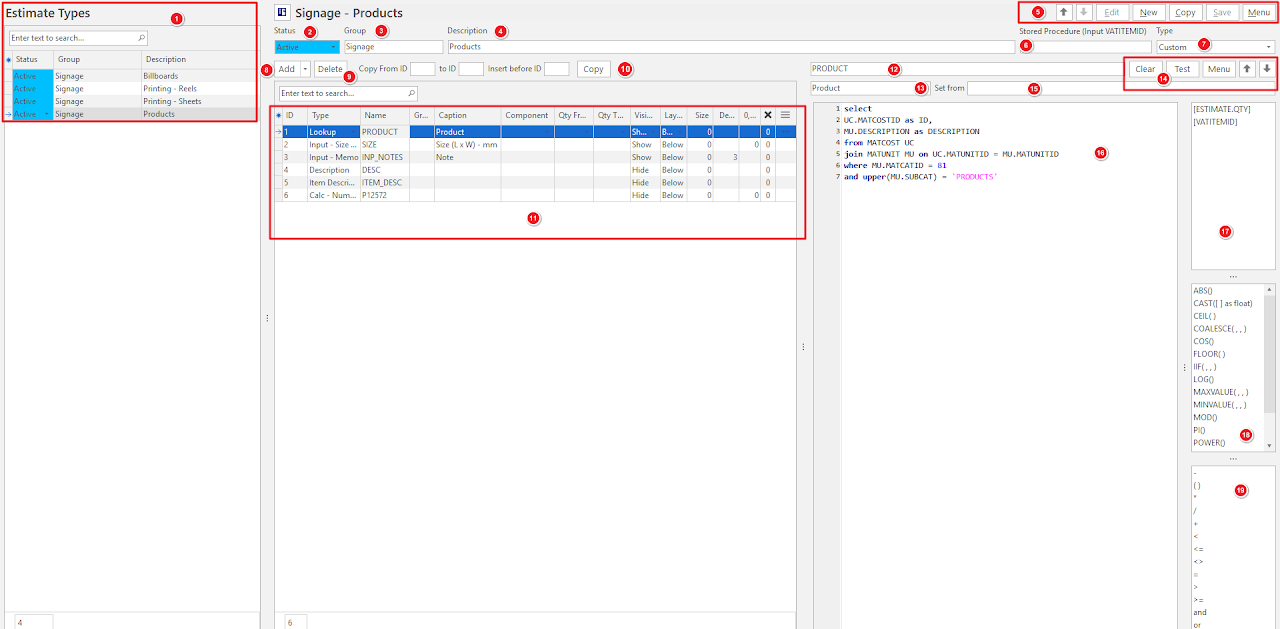
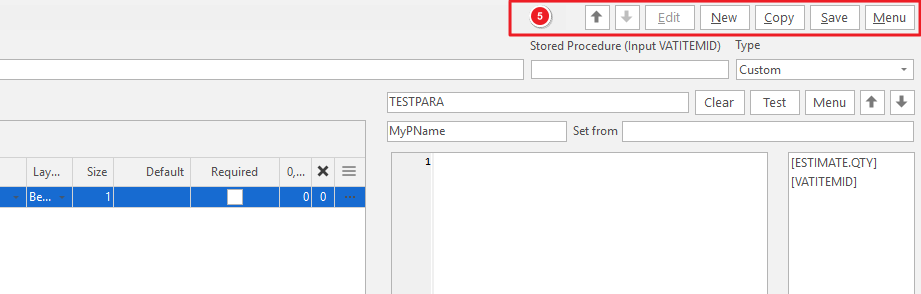
Top Row Buttons (5)
| Button | Description |
|---|---|
| Arrows | Navigates through Estimate Types. |
| Edit | Enables editing. |
| New | Creates an Estimate Type. |
| Copy | Copies an Estimate Type to create a new one. |
| Save | Saves any changes. |
| Menu |
|
List View
(1) Lists all the Estimate Types. Click any entry to display the details on the right.
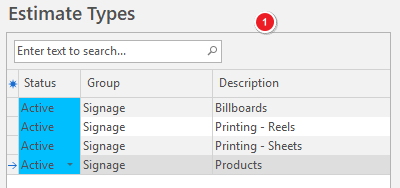
| Field | Description |
|---|---|
| Field Chooser (*) | Add or remove columns. |
| ID | The system-generated number for the Estimate Type. |
| Status | The Estimate Type's status. |
| Ver | The Estimate Type's version number. |
| Rev | The Estimate Type's revision number. |
| Group | The Estimate Type's group. |
| Description | The Estimate Type's description. |
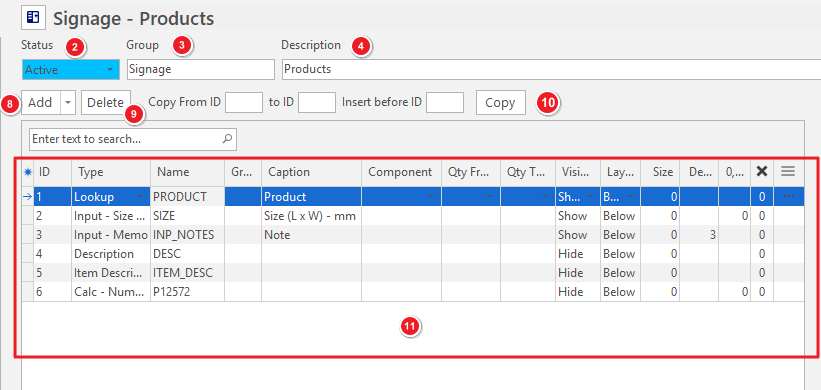
Header Fields and Buttons
This section is where Estimate Types are created or edited.
- Status (2): A dropdown list of statuses for you to select one. The options are Pending, Active or Closed. Only Active Estimate Types can be used in transactions.
- Group (3): Enter a group name. Use groups to sort Estimate Types.
- Description (4): Enter a description. The description is the Estimate Type's name.
- Add (button) (8): Adds a new Parameter to the Estimate Type for completion (that is, adds a custom parameter to the grid (11)).
- Arrow on Add (button) (8): Displays a dropdown list of Parameter Types for selection (see Parameter Types Explained below).
- Delete (9): Deletes all the selected parameters. Requests confirmation.
- Copy (10): Duplicates the parameters based on these fields:
- From and To ID: Specifies which parameters must be copied.
- Insert before ID field: Specifies where the copied parameters must be placed.
Parameter Fields Explained (11)
The parameters specify the values, constraints and functions of the estimate.
Fields marked in blue (✎) can be edited.
| Field | Description |
|---|---|
| Field Chooser (*) | Add or remove columns. |
| ID | The system-generated number allocated to the parameter. |
| Type | Select a Parameter Type (see Parameter Types Explained below). |
| Name | The parameter's name that is used in expressions and other parameters.
|
| Group | Enter a number that groups and links parameters. Parameters with the same Group number are grouped together even if they are not listed underneath each other. |
| Caption | Enter a caption for the parameter that will appear on the estimate as a label. |
| Component | A dropdown list of other parameters which service as a component. Used to link the parameters. |
| Qty From | Enter a stored procedure which specifies the quantity for Material and Service parameters.
|
| Qty Type | Provides a dropdown list from which a Quantity Type can be selected. Applies to material and service parameters. If the material or service item is for specification purposes only (e.g. when the job is outsourced), set the Qty Type to blank to prevent the material or service from being added to the estimate. The available quantity types are:
|
| Visible | This field determines if the parameter appears on the Input tab of a General Estimate. (Because of the overhead it places on the system, the number of parameters that are set to visible should be limited to Input parameters and those performing meaningful calculations.) The options are:
|
| Layout | Specifies the location of the parameter's control. Lets multiple parameters appear next to each other. The options are:
|
| Size | Enter a number. Sets the Width of the Parameter's control when it appears on an estimate. 0 = Default Width; -1 = Full width (this matches the widest parameter's width). The Size field works with the following Parameter Types:
|
| Default | When the value of a Parameter Quantity is null, the Default value is assigned to the quantity. The Default field works with the following Parameter Types:
|
| Decimals (0.00) | Determines how many decimal places are used on numeric Parameter Types and applies to the Input – Number and Calculation Parameter Types. Max decimals = 4. |
| X | The quantity (Qty) is multiplied by the number of units produced (Qty x Unit Price x Number of Items Produced = Total Cost). If the item is nested X represents the quantity of the parent item. |
| Menu (...) |
|
Stored Procedures
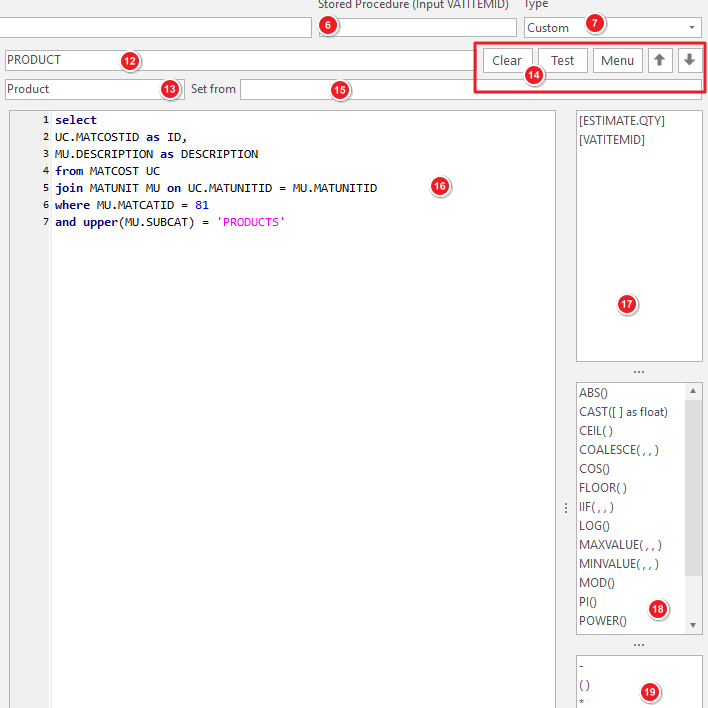
- Stored Procedure (Input VATITEMID) (6): Paste a stored procedure to input information about the transaction or the Transaction Type.
- Type (7): Option to select Custom or Ringrollers.
- PRODUCT (12): The name of the selected parameter (in this example the name is PRODUCT).
- Product (13): The caption for the parameter (in this example the caption is Product).
- Set From (15): Sets the caption from another parameter such as a Calc – Text parameter.
- This parameter can be set above the Expression Editor and lets you generate a Caption based on other parameter values.
- If the parameter is set to visible, but the generated caption is blank, the control does not appear.
- Example of use: Selecting ink colours that are used for each section of a job on a Printing Estimate. If two out of eight colours are selected, only two fields appear for each Part or Section and the captions are derived from the selected colours.
- Expression Editor (16):
- The input for the Expression Field depends on the Parameter Type.
- You can add Functions, Operators and valid Parameters by clicking an entry on a list.
- The Expression Editor is used as follows:
- Calculation: The 'Expression' contains a formula (similar to a spreadsheet formula) in which the 'Names' of other numerical type Parameters can be embedded as variables using square brackets. For example, [PARAMNAME].
- To prevent circular links, the 'Expression' may only contain links to numerical Parameters that are higher up in the list. When calculations are done, the Parameter Names are substituted with the linked parameter values. The Fixed parameters are:
- [ESTIMATE.QTY], which adds the Estimate Qty to a calculation.
- [VATITEMID], which extracts information about the transaction or the Transaction Type.
- Parameter names (17): Displays a list of parameter types that can be used in the Expression Editor.
- Variables (18): Displays the available mathematical functions for SQL queries.
- Operators (19): Displays the available mathematical operators for SQL calculations.
Buttons (14)
| Button | Description |
|---|---|
| Clear | Clears the stored procedure. |
| Test | Tests the stored procedure. |
| Menu |
|
| Arrows | Navigates between stored procedures. |
Parameter Types Explained
| Field | Description |
|---|---|
| Group Header | Creates a header which can also be used to show or hide fields in the Group. Headers can be collapsed or expanded and appear in bold on the Form tab of an estimate. |
| Repeat Header | Functions like a Group Header but repeats the fields setup under the Repeat Header.
|
| Input – Est. Qty | Inputs a single Estimate Quantity. When used, the estimate cannot have multiple quantities. |
| Input – Number | Inputs any numerical value up to a specified number of decimals (max. four). Calculations can be used to generate a default number which can be overwritten. |
| Input – Select Number | Selects a numeric value from a list of hard-coded values. |
| Input – Text | Inputs text values. Can be used to create text values for a lookup list. Text values can be overwritten on an estimate. |
| Input – Memo | Inputs multiple lines of text such as extra notes for the customer. |
| Input – Size – DxW | Inputs a flat size (depth x width). A lookup can also be created in the format: description, depth, width (e.g. A4,297,210). |
| Input – Number > Text |
|
| Input – Adj% (MAT) | Generates the adjustment percentage for all the Materials on the estimate. Overrides any Adj % set on items. |
| Input – Adj% (SER) | Generates the adjustment percentage for all the Services on the estimate. Overrides any Adj % set on items. |
| Input – Adj% (OWK) | Generates the adjustment percentage for all the Outwork on the estimate. Overrides any Adj % set on items. |
| Calc – Numerical | Calculates a numerical value. |
| Calc – Est. Qty |
|
| Calc – Text | Calculates and returns a text value. Can also be used to display an error message. |
| Lookup | Generates a lookup list based on specific values from the database. The SQL must contain ID and DESCRIPTION columns. |
| Item | Add items to an estimate. It replaces the Material, Material (BoM) and Service types. |
| Description | Creates values for the Description tab on an estimate. Normally a few Calc – Text fields calculate and format information before passing it to the Description parameter. |
| Specification | Creates values for the Specification tab on an estimate. Normally a few Calc – Text fields calculate and format information before passing it to the Specification Parameter. |
| Item Description | Sets the Item's description on an estimate transaction. Can also be calculated using a Calc – Text parameter. |
Description and Specification
- Estimates can generate a Description for customers and a Specification for production use.
- The Specification can contain additional information that is for internal use only.
- The procedure that calculates the Estimate Type can also be used to generate a Description and Specification directly in the Transaction Item.
Stored Procedures
Stored Procedures are the brains behind the estimating process. Stored Procedures are created in FlameRobin SQL Editor.
Contact QuickEasy Helpdesk for assistance with Stored Procedures and SQL Scripts.
For instructions on installing FlameRobin, click here.
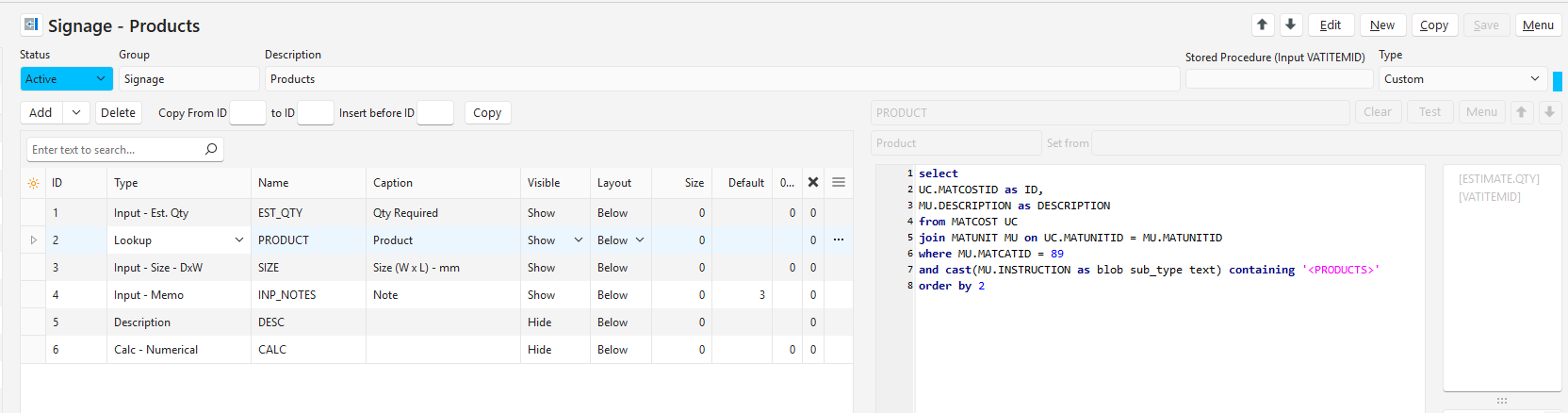
Estimate Type Example: Signage - Products
Screenshots are not included for fields with IDs 2 and 3 because they do not have any input in the Expression Editor.
![The DESC parameter (ID 5) selected, showing its stored procedure referencing [INP_NOTES].](/assets/img/c8fa70021f2f1533.png)
![The CALC parameter (ID 6) selected, showing its stored procedure calling CTM_EST_SIGNAGE([VATITEMID]).](/assets/img/f8eaf36c062cb713.png)
Tips
- Do not use fixed ID’s in Stored Procedures. Use Item Codes that can be managed by end users instead.
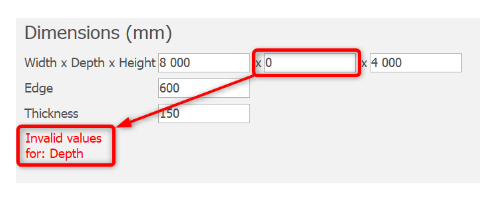
- Add Error messages to clearly inform users when Input parameters are incomplete or items are not found. See image below: