
Customer Payments Module
Overview
BOS Enterprise includes a Customer Payments' module that lets you capture part or full payments directly from Customer Invoices, Customer Age Analysis, or from a Menu option. This module is ideal for point-of-sale systems.
Settings
General Settings
The defaults are the values for new databases, new users and new Transaction Types. Your database may have different values.
| Setting | Description | Default |
|---|---|---|
| Payments > Transaction Type - Customer Payments (Link to Receipts) | Select the Transaction Type used for customer receipts (e.g. Customer Receipts) from the dropdown list in the Value column. | Not set |
Transaction Settings
Add the following setting to Customer Invoices and check the checkbox in the Value column:
| Setting | Description | Default |
|---|---|---|
| Payments > Enable Customer Payments (Link to Invoices) | Checkbox. Check it on Customer Invoices to link customer payments to the invoices. | Unchecked |
Add the following setting to Customer Receipts (as selected under General Settings):
| Setting | Description | Default |
|---|---|---|
| Payments > Payments - Item ID - Cash (Link to Receipts) | Enter the Item ID in the Value column (e.g. 2862). See Setup Steps below. | 0 |
| Payments > Payments - Item ID - Change (Link to Receipts) | Enter the Item ID in the Value column (e.g. 2863). See Setup Steps below. | 0 |
Setup Steps
Customer Payment options are created as Items. Because an item needs a Category, the first step is to create a new Category. Thereafter, the payment option items can be created.
- If you receive cash, create two items, one for cash and one for change. Fill in their IDs in the Transaction Settings (see above).
- See Customer Payments Setup Tutorial for detailed instructions.
- Add a Category (Main Menu > Items > Items > Menu (button) > Edit Categories). For example:
- Category Name = Payments.
- Category ID = 77 (Your ID number will be different, make a note of it. If the field is hidden, use the Field Chooser (*) and select ID to display it.)
- Right-click the category and select Set default Tabs, then tick Accounting.
- Add Items for all the different ways customers pay (e.g. Card, PayPal, Cash, EFT). For example:
- Category = Payments
- Description = Payment method (e.g. Cash, EFT).
- Type = Other
- Add Accounting = Select the applicable bank account.
- If customers pay in cash, also create an item for Change:
- Category = Payments
- Description = Change
- Type = Other
- Add Accounting = Select Cash.
- Link the Category to the Customer Receipts transaction (Main Menu > Setup > Transactions > Transaction Types (tab)).
- Edit Customer Receipts.
- In the Items & Inventory section, scroll down to Category filter – (e.g. [not] in (2,3.4) and enter 77 (replace 77 with the ID of your Category from Step 1.2).
- Uncheck Accounting for the Pending Status (Main Menu > Setup > Transactions > Status (tab)).
- Edit Customer Receipts.
- Add Customer Receipts as a Menu option (optional).
- Edit the Menu Group you want to add Customer Receipts to (e.g. Accounting).
- Click Add Menu Items (button):
- Click the Fixed radio button.
- Find and click Customer Payments then click Add (button).
Customer Receipts Interface from a Transaction
An error message appears if you click the Pay button and the transaction has a zero outstanding balance.
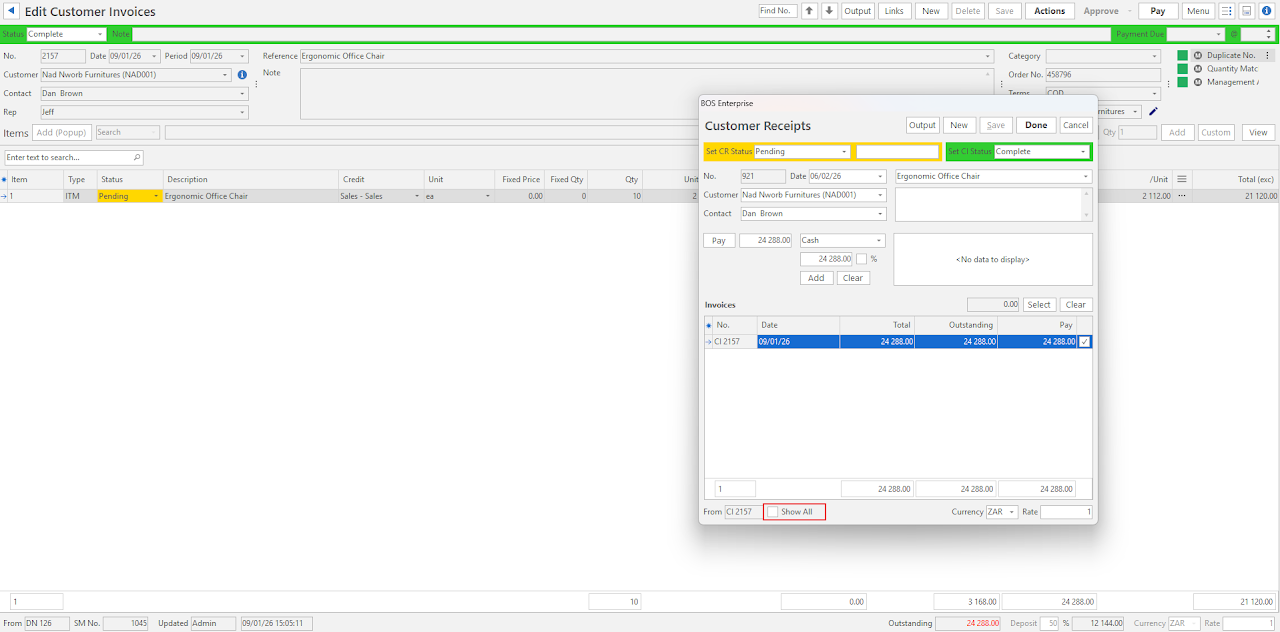
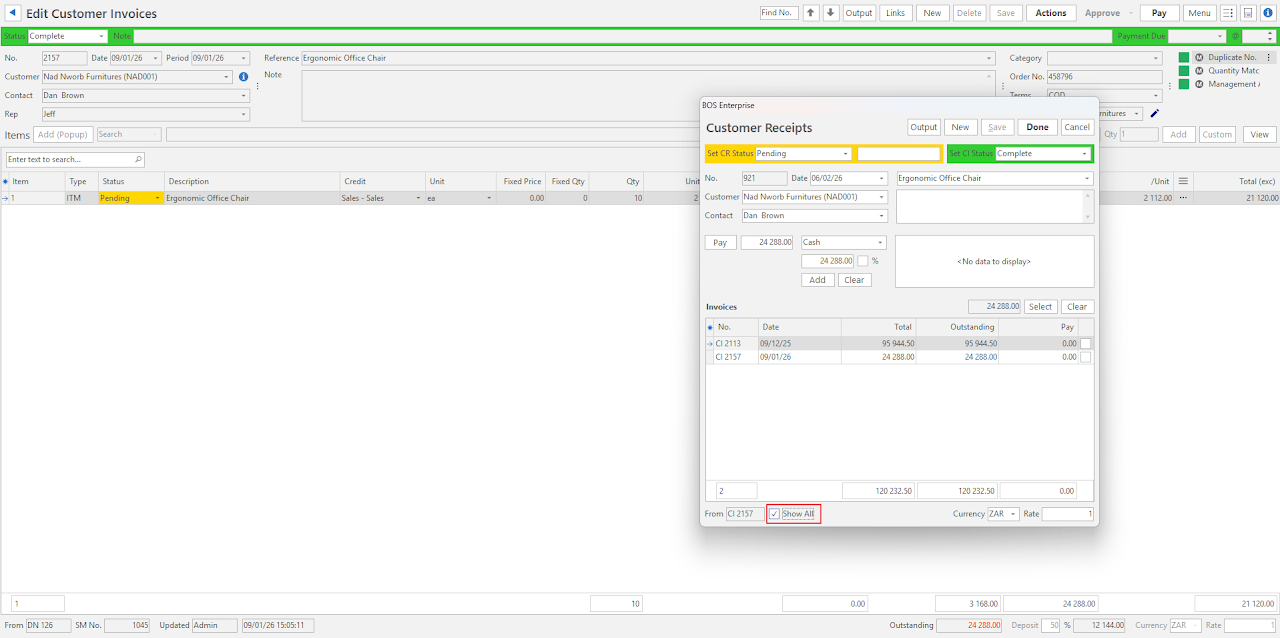
When the Payments module is opened from an invoice, only the current invoice appears under Outstanding Invoices. Checking the box next to Show All displays all the outstanding invoices for the customer.
Top Row Buttons Explained
| Button | Description |
|---|---|
| Output | Available upon request. |
| New | Creates a new Customer Receipt. |
| Save | Saves any changes. |
| Done | Completes the receipt. |
| Cancel | Warns that the receipt will be deleted and closes the popup. |
Status Bar Explained
- Set CR Status: Select a Status for the Customer Receipt, and a field to enter a Status Note.
- Set CI Status: Set the Status of the Customer Invoice or leave it unchanged.
Header Fields Explained
| Field | Description |
|---|---|
| No. | The system-generated number for the receipt. |
| Date | The date of the receipt (defaults to today). |
| Customer | The name of the Customer. |
| Contact | The customer's Contact Person. |
| Reference | Displays the Reference and Note that is on the Customer Invoice from which the Pay (button) was accessed. |
Below-Header Buttons Explained
| Button | Description |
|---|---|
| Pay | Provides a dropdown list of these Payment options:
|
| Dropdown that defaults to Cash | Provides a dropdown list of payment methods for you to select one. |
| Amount ◻️ % |
|
| Add | Adds an additional payment for the same invoices (e.g. where a customer is paying part of the invoice in cash, and part of the invoice by card). |
| Clear (next to Add) | Clears all the amounts and selections. |
| Select | Select the invoices to pay. Only available if Allocation is selected under Pay (button). |
| Clear (next to Select) | Clears the selection. Only available if Allocation is selected under Pay (button). |
Columns Explained
Fields marked in blue (✎) can be edited.
| Field | Description |
|---|---|
| Field Chooser (*) | Add or remove columns. |
| TransID | The system-generated number allocated to the invoice. |
| No. | The original document's number (e.g. Customer Invoice number). |
| Date | The original document's date (e.g. Customer Invoice date). |
| Total | The total amount of the original document (e.g. Customer Invoice). |
| Outstanding | The balance still outstanding on the original document. |
| Pay | The amount that the customer is paying. |
| Select | A checkbox. Used to select (checked) or deselect transactions (unchecked). |
Footer Explained
| Field | Description |
|---|---|
| From | The Code and Number of the document that Customer Payment was accessed from. |
| Show All |
|
| Currency | The Currency of the payment. |
| Rate | The current Exchange Rate. |