
Batch Tracking
Overview
When creating items, you choose if the item is tracked or not by selecting an option from the dropdown list next to Tracking. The tracking options are:
- Batches: Items are tracked in batches.
- Serial No.: Items are tracked by serial number (e.g. electronic goods).
- Yield: Items are tracked by their yield.
In addition to the above, BOS Enterprise provides for a scenario where a batch is transferred to a new location, part of the batch is used and the remainder is returned to the original location. This scenario is referred to as Staged Batch Tracking and requires additional setup steps.
💡These tutorials explain how to record transactions for general and staged batch tracking and how to view batch information.
How to Set Up Staged Batch Tracking
Staged Batch Tracking manages the transfer, issue and partial return of a batch. You can transfer a complete batch to another location, dispense the required amount and then return the remaining quantity to the original batch record.
This process is designed for controlled environments, such as in pharmaceuticals, where a batch is moved to a staging location, opened under sterile conditions and the resealed remainder is returned to the storeroom.
- Create two new Transaction Types: (e.g. Main Menu > Setup > Transactions > Transaction Types (tab))
- Batch Transfer and Batch Issue.
- Use the following settings:
- Items & Inventory:
- Pricing = Cost Price
- Resolve = None selected
- Options & Defaults:
- Use Item Tracking = Checked.
- Items & Inventory:
- Uncheck the checkboxes in the Accounting column for all the Statuses for both Transaction Types.
- Create a Copy Rule to copy a Batch Transfer transaction to a Batch Issue transaction (e.g. Main Menu > Setup > Transactions > Copy Rules (tab)).
- Navigate to Transaction Settings (e.g. Main Menu > Setup > Settings > Transactions (tab)).
- Add the setting: Default: Batch Transfer Transaction (Select Staging Location) to the Batch Transfer Transaction Type and select the location from the dropdown list in the Value column.
- Add the setting: Default: Batch Issue Transaction to the Batch Issue Transaction Type and check the checkbox in the Value column.
- Add the new Transaction Types to a Menu Group.
- Allocate User Access to the new Transaction Types (e.g. Main Menu > Settings > Users).
How to Transfer Staged Batches
The temporary batch that is created in the Staging location is suffixed with (Temp).
Only move the transaction to a read-only Inventory Status when the transaction is complete.
- Navigate to Batch Transfer.
- Click New (button).
- Reference = Enter a reference.
- Items = Select an item from the dropdown list that has is tracked in batches. Only items that meet the following conditions are available for selection:
- Items must have a Cost Price that is linked to the Base Unit.
- Items must have Batch selected as the Tracking option.
- Items must have All Locations or Fixed Locations selected as the Inventory option.
- The Staging Location must be added as a location on the item's Inventory tab.
- Qty = Enter the quantity being transferred, which is usually the entire batch (e.g. if you take a bottle of pills, you transfer the entire bottle). However, you may select a smaller quantity.
- Click Add (button).
- Status = Change the status of the transaction.
- Click Save (button).
How to Issue Staged Batches
- From editing a Batch Transfer, click Actions (button) > Copy to Batch Issue.
- Select the items to transfer on the popup.
- When the new transaction is opened, edit the quantity that is issued (e.g. the pills that were removed from the bottle).
- Note: Qty Return column is available from the Field Chooser (*). You can update either the Qty or Qty Return fields.
- Click Save (button).
General Batch Tracking
How to Enable the Batch Issue (Splitting) Function
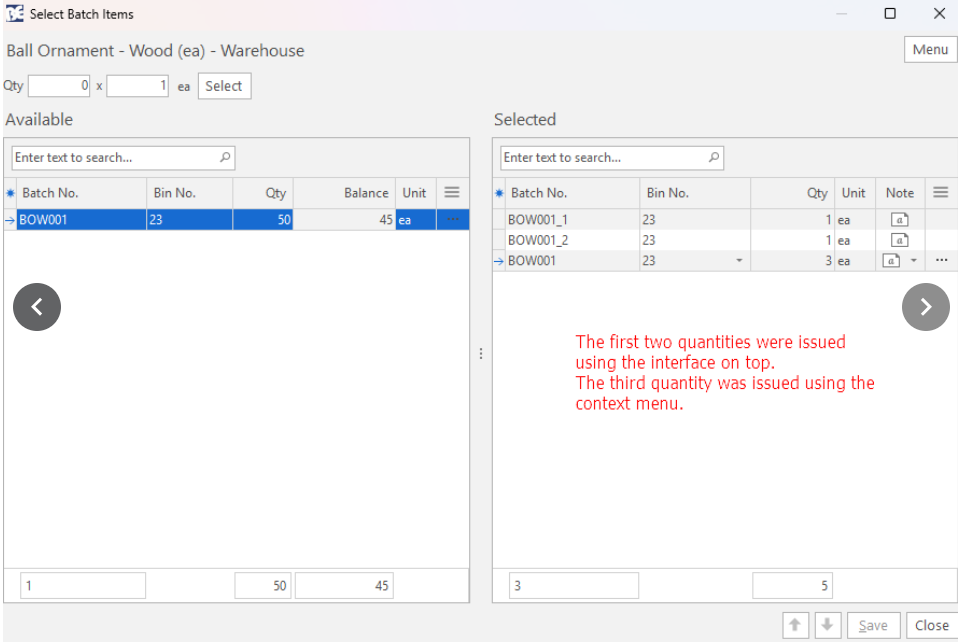
This setting is optional. It lets you divide a batch into smaller batches (e.g. splitting a batch of 100 into five batches of 20 each).
On the screenshots below, the 2nd and 3rd screenshots show a Qty interface in the header. This setting activates or deactivates that Qty interface.
- Navigate to General Settings (Main Menu > Setup > Settings > General (tab)).
- Enter batch in the search bar.
- Find this setting: Items & Inventory > Enable Batch Issue function (Add Qty x No. of new Batches).
- Note: If the setting is not there, click Add/Update (button) and add the setting to the list.
- Check the checkbox in the Value column.
- Click Save (button).
How to Receive a Batch of Items
The procedure from Step 9 is the same if you are copying a transaction and not creating one from scratch.
- Navigate to a list of Goods-Received transactions.
- Click New (button).
- Supplier = Select a supplier from the dropdown list.
- Contact = Select a contact from the dropdown list.
- Reference = Enter a reference.
- Items = Select an item from the dropdown list that is tracked in batches.
- Click Add (button).
- Click Save (button).
- Right-click the item and select View/Edit Batch Items.
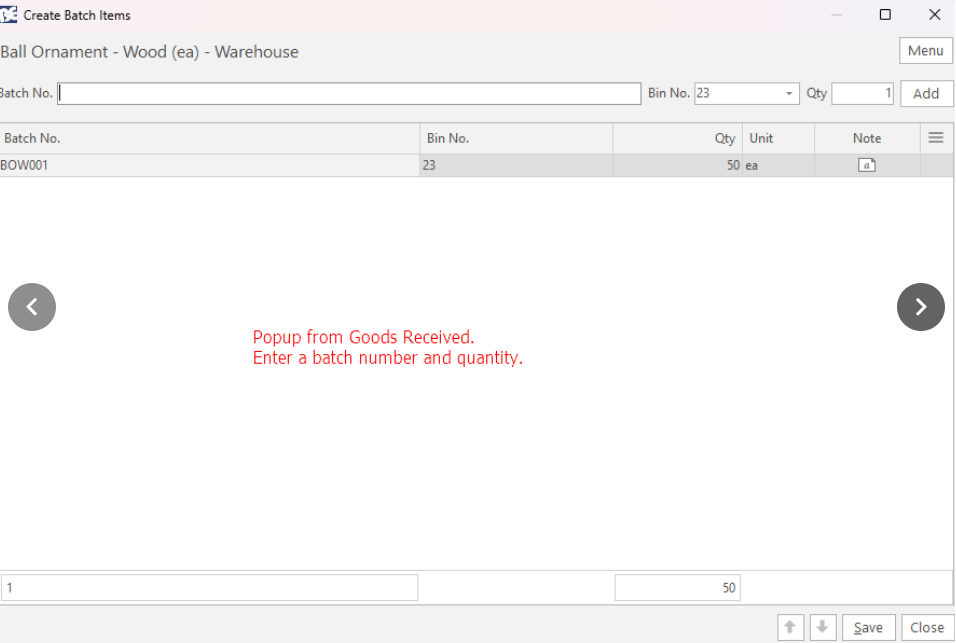
- A popup to Create Batch Items appears. Complete the details as follows:
- Batch No = Enter a number for the batch.
- Bin Ref = Select a bin reference from the dropdown list or enter a number.
- Qty = Enter the quantity received.
- Click Add (button).
- Repeat Steps 1 to 4 to add more batches. (Right-click an existing entry and select Copy to duplicate it.).
- Click Save (button).
- Click Close (button).
- The quantity on the transaction is automatically adjusted to reflect the quantity from the popup.
- Click Save (button).
How to Issue Batch-Tracked Items
The procedure from Step 10 is the same if you are copying a transaction and not creating one from scratch.
- Navigate to a list of Goods-Issued transactions.
- Click New (button).
- Customer = Select a customer from the dropdown list.
- Contact = Select a contact from the dropdown list.
- Reference = Enter a reference.
- Items = Select an item from the dropdown list that is tracked in batches.
- Click Add (button).
- Click Save (button).
- Right-click the item and select View/Edit Batch Items.
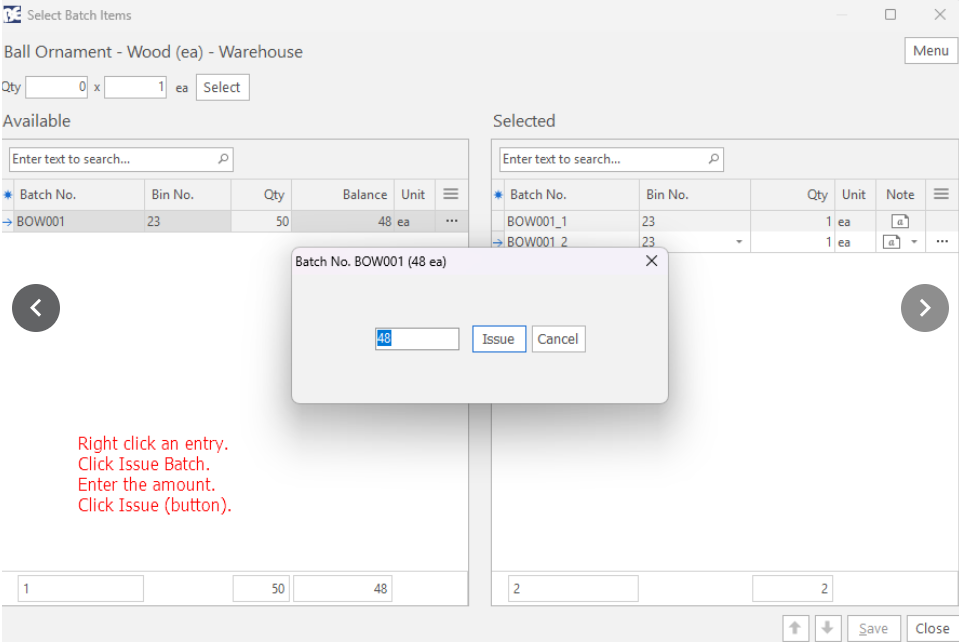
- A popup to Select Batch Items appears. The available batches are listed in the Available section.
- Right-click an entry in the Available section and select Issue Batch.
- On the popup, enter the quantity to issue and click Issue (button).
- If you make a mistake,
- Right-click the entry in the Selected section and select Edit Qty. Adjust the quantity as needed.
- Right-click the entry in the Selected section and select Delete. Repeat Steps 10.1 and 10.2 to add the correct quantity.
- Enter a Bin No. (optional).
- Click Save (button) unless it is greyed out.
- Click Close (button).
- The quantity on the transaction is automatically adjusted to reflect the quantity from the popup.
- Click Save (button).
How to View Batch-Tracked Items
- Navigate to Inventory Reports (e.g. Main Menu > Procurement > Inventory).
- Click Menu (button) > Batch Items.
- Click View (button).
- A list of transactions appears, including the quantity received, used and available.
How to View Batch Information on the Item Summary
- From a list of items or a transaction, right-click an entry and select View Item Summary.
- On the Item Summary, click Inventory (tab).
- Click Batches (tab).
- The batches are listed along with their locations, original quantities and quantities available.