
Calendar Tutorial
Overview
- The Calendar shows the events of resources, such as users and planning board stages, side by side.
- Events come from the calendar itself, from appointments on workflows and from items on transactions.
- For every option, see Calendar.
💡These tutorials explain how to set up resource groups and resources, choose what the calendar shows, add, move and delete events, and show transaction items on the calendar.
How to Set Up Resource Groups and Resources
Note
Calendar Setup needs Setups > Calendar Setup – Access Allowed (see How to Edit User Settings).
- Navigate to the Calendar and click Menu (button) > Calendar Setup.
- Click Edit (button).
- Click New (button) and enter the group's Description, for example, Sales Team.
- Click Add (button) to add a resource to the group, or click the arrow on it and select All Users or All P/B Stages.
- For each resource, fill in the fields:
- Type = Select User, P/B Stage or Other.
- Resource = Select the user or planning board stage (not for Other).
- Description = Enter the name shown in the calendar.
- Colour = Select the resource's colour.
- Share = Select None, Can View or Can Edit to decide who sees and edits its events.
- Click Save (button).
How to Choose What the Calendar Shows
- Navigate to the Calendar.
- Click Groups (button) and select the resource groups.
- Check the resources on the left whose events you want to see.
- Set the view:
- View = Select Day View, Week View, Weeks View, Year View or Time Grid.
- Scale = With Time Grid, select the scale.
- Days and Hours = Select the work days and the hours of the working day.
- To jump to a date, right-click an empty part of the calendar and select Today or Go to Date.
- To keep this view, click Menu (button) > Save Layout. Until you save a layout, the Calendar shows only your own resource.
How to Add an Event
- Navigate to the Calendar.
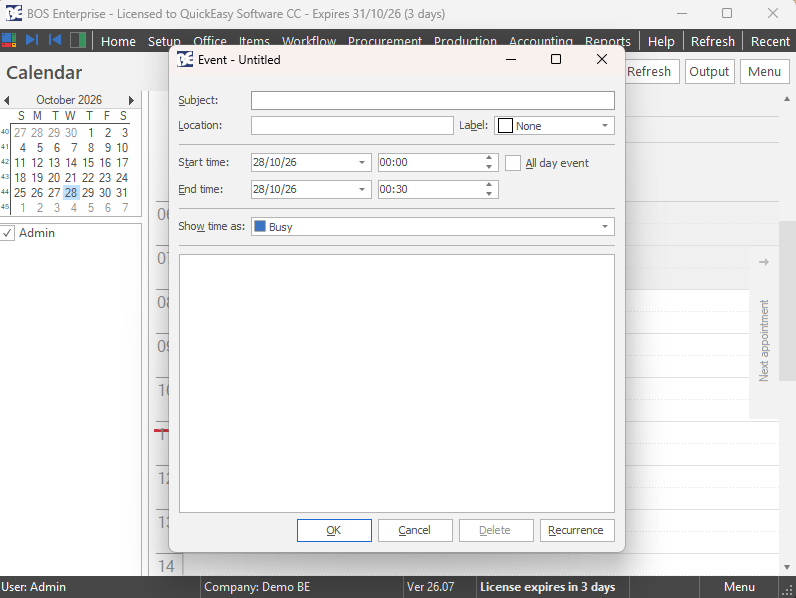
- Right-click the date and time in the resource's row or column and select New Event. The Event window opens.
- Fill in the fields:
- Subject = Enter what the event is about.
- Location = Enter where it takes place (optional).
- Label = Select a label to colour the event (optional).
- Start time and End time = Select the date and time, or check All day event.
- Show time as = Select how the time shows, for example, Busy.
- Enter any notes in the large box.
- To repeat the event, click Recurrence (button) and set how often it repeats.
- Click OK (button).
How to Move or Change an Event
- Drag the event to another time or resource, or drag its edge to change how long it lasts.
- Double-click the event to change its details.
- Note: Changing an event that comes from a transaction or a workflow updates the item or appointment it comes from.
How to Delete an Event
- Right-click the event and select Delete.
- At
Delete Event?
, click Yes. - Note: Events from a transaction or workflow cannot be deleted here. Right-click them and select Open Transaction or Open Workflow, and delete them there.
How to Show Transaction Items on the Calendar
- In the Transaction Type's properties, check Update Calendar and Use Events (see Transaction Type Properties).
- On each item, fill in the Event Type, the Resource, and the start and end (Event Start and Event End, or Check in and Check out).
- Save the transaction. The items appear on the calendar, and they are removed when the transaction is cancelled.